
Magnific - AI Video & Image
Freepik CompanyArt & Design
3.9253.00 Reviews
- Version
- 6.2.1
- Installs
- 1.00M
- Age Rating
- Mature 17+
Screenshots
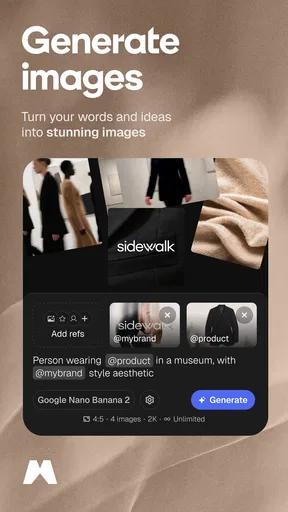
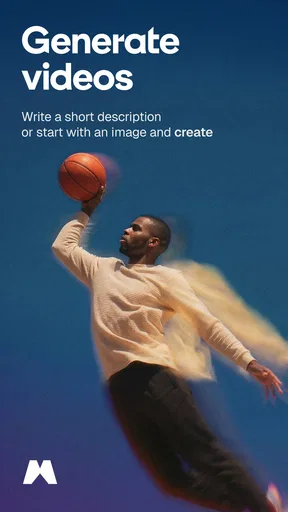
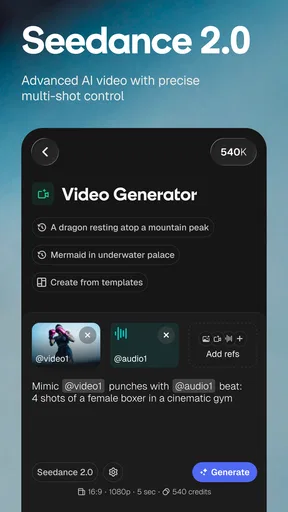
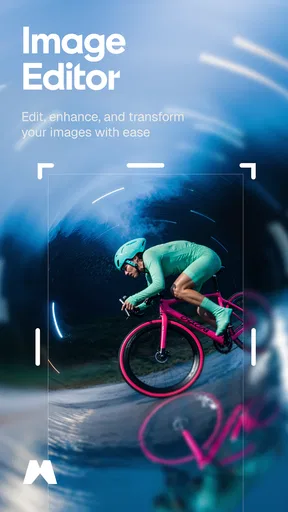
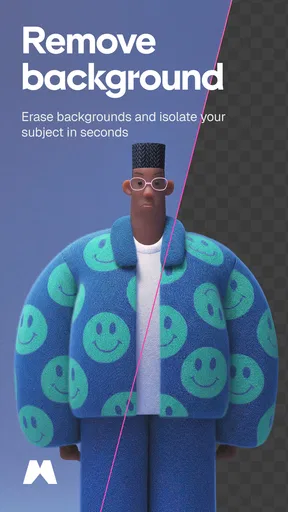

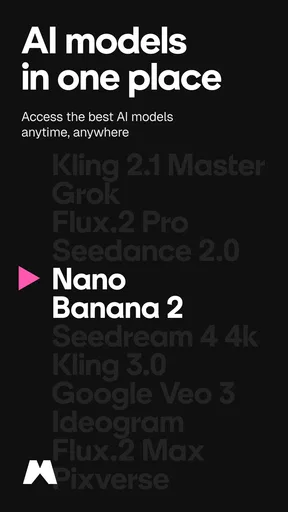
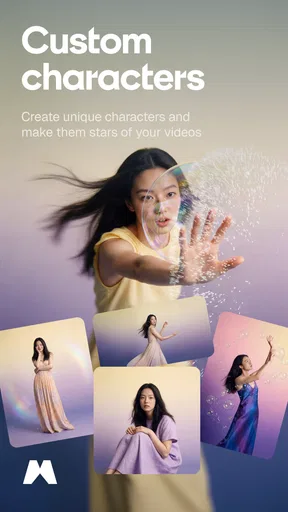
Our Review of Magnific - AI Video & Image
 Analysis by Appyee
I approached Magnific as an everyday creative tool rather than a specialist studio replacement. It sits in the Art & Design category, comes from Freepik Company, and combines AI image creation, video work, and photo editing in one mobile app. That combination makes it interesting for a shared household: one person might use it to prepare a birthday invitation, another could experiment with a short visual for social media, and someone else might simply want to improve a photo before sending it.
My first impression was that the app is aimed at people who want quick visual results without opening several separate editors. It is free to install, although in-app purchases range from $12.99 to $494.99 per item, so I would not treat every visible tool as automatically free. The store places it in the Mature 17+ bracket, which matters if the app is installed on a device used by teenagers or children. It is also a relatively established download, with over one million installs and a 3.9 average from around fourteen thousand ratings.
How it works when several people share one device
A realistic household example would be a parent preparing a simple party graphic while a teenager works on a video thumbnail. Both jobs benefit from having generation and editing in the same place. Instead of taking a photo into one app, generating a background somewhere else, and then moving the result into a design editor, I can keep the main creative process together. That saves time when the goal is a usable result rather than a carefully built professional composition.
The shared-device advantage is convenience, but it also creates a practical boundary: the app does not become a family workspace simply because several people use the same phone. I would treat each person’s projects as their own responsibility. Before starting, I would agree on which images belong to whom, where finished files should be saved, and who is allowed to use a family photo in an AI-generated design. Those decisions are more important than the generation button itself.
For a quick household task, I would begin with one clear objective. If I need a birthday invitation, I would first prepare the wording and choose the photo or visual direction. If I want to improve an old image, I would edit that image instead of repeatedly generating unrelated alternatives. This sounds obvious, but it prevents the app from turning a five-minute job into a long session of browsing, testing, and comparing outputs.
I also found that shared use works best when each person has a separate creative intention. A child may want a playful illustration, while an adult may be preparing a practical announcement. Mixing both projects in one open session makes it harder to remember which source image was used and which version is final. I recommend exporting or saving a finished result before handing the device to someone else, rather than relying on memory or an open editing screen.
Keeping setup simple without losing control
The app runs on devices using Android 8.0 or later, which gives it a reasonably broad starting point for older compatible phones and tablets. The current version is 6.2.1. In my experience, the more important preparation is not technical; it is deciding who will use the app, what kind of images they may work with, and whether purchases are acceptable on that device.
Because the app includes AI creation as well as photo and video editing, I would not hand it to a younger user without first trying the main workflow myself. A teenager who only wants to make a harmless poster may still encounter creative options that deserve adult context. The age label of Mature 17+ is a clear reason to keep the app’s intended audience in mind rather than assuming that an artistic category makes it suitable for every member of the household.
There is also a financial boundary to establish before experimenting. Free access makes it easy to begin, but the listed purchase range is wide, reaching from $12.99 to $494.99 per item. I would explain that “free to install” is not the same as “everything is free,” especially on a shared device where another person might tap through a purchase screen. If the phone is used by several people, the account holder should be the one who decides whether any paid option is worth using.
My practical setup routine would be short:
- Choose the project first, such as a photo improvement, a social clip, or a simple event graphic.
- Keep original photos separate from edited results so an unsuccessful experiment does not replace the source.
- Check the purchase boundary before exploring premium-looking tools.
- Use a clear file name or album for finished household projects.
- Review a result before sharing it, particularly when it includes a real person’s face or personal setting.
This routine is not a special feature of the app, but it makes a noticeable difference when several people use one phone. AI tools encourage rapid trial and error, and that can create a cluttered camera roll quickly. A little organization protects the original material and makes coordination much easier.
Coordination between different kinds of users
One strength of this app is that it can meet different skill levels in the same household. A beginner can approach it as a fast way to make a visual, while a more experienced user can use the editing side to refine an image after generation. I would not expect it to replace a full desktop editor for detailed layers, precise typography, or production work, but it is more flexible than a single-purpose filter app because it covers several stages of a small creative task.
The best division of work is usually based on confidence rather than age. One person can choose the source photo, another can suggest the mood or wording, and a third can review the final image for obvious mistakes. This is especially useful for family announcements, school-related visuals, or a shared travel montage. The app supplies the creative workspace, but the household still needs a simple agreement about who makes the final decision.
I would also avoid treating the first generated result as final. AI-assisted visuals can look convincing at a glance while still having awkward details, inconsistent text, or an image that does not match the original intention. My preferred workflow is to generate or edit broadly, inspect the result at full size, and then make one focused correction. Repeating the entire process without identifying the problem usually produces more variety but not necessarily a better outcome.
A useful non-obvious trade-off is the difference between speed and consistency. If I am making one casual image, a quick result may be all I need. If I am preparing several related visuals, I would spend more time keeping the same subject, tone, and visual treatment across them. A household member who wants a single attractive picture may be satisfied immediately, while someone preparing a sequence of posts will notice differences that make the set feel disconnected.
Video adds another coordination issue. A short visual can be easy to start and surprisingly time-consuming to finish once people begin debating timing, cropping, or which version to share. I would decide whether the goal is a private family clip or a public-facing piece before editing. That choice affects how carefully I would check faces, names, backgrounds, and accidental personal information in the final result.
Age, trust, and the meaning of a finished image
The Mature 17+ rating should be treated as part of the household decision, not as a minor label. I would be comfortable discussing the app with an older teenager, but I would not present it as an unrestricted children’s art toy. The combination of AI generation, real-person photos, and video editing calls for supervision appropriate to the user’s age and the content being created.
Trust also matters when a shared device contains family photos. Before uploading or editing an image of another person, I would ask whether everyone involved is comfortable with that use. A funny transformation may seem harmless to the person holding the phone and embarrassing to the person in the picture. The app can make visual experimentation easy, but it cannot decide whether the result respects the people shown.
I would apply the same care to images from school, work, travel, or the home. A background may reveal an address, a document, a child’s uniform, or another detail that was not meant for public sharing. This is one reason I prefer reviewing an export before posting it anywhere. The most polished result is not automatically the most appropriate one.
For younger household members, I would keep the activity project-based. Making a poster for a family event or editing a landscape photo gives the session a clear purpose. I would avoid leaving the app open as an unsupervised source of endless experimentation, particularly because the age rating is higher than a general-audience drawing app. The distinction is simple: creative use can be shared, but access should still be deliberate.
There is a second trust issue around authorship. When an AI-assisted result looks impressive, it can be tempting to present it as if it were drawn or photographed traditionally. In a family setting, I would encourage users to be honest about how the image was made, especially if it is being used for school, work, or a community project. That does not reduce the fun; it sets a fair expectation for everyone who sees the result.
Where it beats ordinary alternatives, and where it does not
Compared with a basic photo editor, Magnific is more appealing when I want to move beyond adjustments and create something new. A conventional editor is usually better when I need predictable controls for cropping, color, sharpness, or precise retouching. I would choose the traditional option for a careful correction to an important photograph and reach for this app when I want the image to become part of a broader visual idea.
Compared with a dedicated video editor, it is attractive for a quick, mixed-media workflow. A specialist video app will generally make more sense when timing, audio, transitions, captions, and repeated revisions are the central job. Here, the appeal is having image creation, video work, and photo editing close together. That is convenient for casual projects, but convenience should not be confused with the depth of a dedicated production tool.
Compared with a template-based design app, this one feels better suited to users who want the visual direction to come from an AI-assisted idea rather than from a fixed layout. Templates can be faster for invitations, menus, and announcements because the structure is already settled. I would choose Magnific when the starting point is a concept or image that needs interpretation, not when I simply need a reliable document with exact text placement.
One of the most useful trade-offs is control versus surprise. AI assistance can help someone who has a clear idea but limited design skills, yet it may also move the result away from the original intention. If exact branding, accurate product details, or consistent people are essential, I would prefer a more controlled workflow. If the aim is an expressive visual for personal use, the unexpected variation can be part of the appeal.
The rating gives a balanced signal: a 3.9 average from around fourteen thousand ratings suggests that the app is useful to many people but not universally frictionless. I read that as a reason to set realistic expectations. It is not a magic replacement for judgment, and the presence of paid items means the free starting point should be explored carefully before committing to a larger workflow.
Everyday workflows I would actually recommend
For a family event, I would take one suitable photo, decide on the message separately, and use the app to develop the visual around those two ingredients. I would then inspect the final composition for readable wording and distracting details before sharing it with the family group. This keeps the creative part enjoyable while avoiding the common mistake of letting the generated image determine the whole communication.
For a personal social post, I would create a small batch of ideas but select only the version that still looks natural after a close review. The most dramatic image is not always the most useful one. A restrained edit can work better when the subject is a real person, while a more imaginative treatment may suit an abstract theme, a hobby, or a mood board.
For an older photo, I would preserve the original and use the edited version as a separate interpretation. This is particularly important with family memories because an AI-assisted improvement may change details that are meaningful even if they look technically imperfect. I would compare the result with the source and keep both rather than assuming that sharper or cleaner automatically means more faithful.
For a shared creative session, I would assign one person to describe the desired result and another to judge whether the output actually meets that description. This small separation helps prevent endless tweaking based only on excitement. It also makes the app more educational: users learn to identify what they want to change instead of simply asking for another result.
These workflows reveal the app’s strongest practical quality: it lowers the distance between an idea and a presentable visual. Its weaker side appears when the project requires strict repeatability, detailed manual control, or a completely predictable result. Knowing which side of that line your project sits on will save more time than learning every available creative option.
My household verdict
I would recommend Magnific to a household that wants an approachable way to explore AI-assisted images, videos, and photo edits without maintaining several separate creative apps. It is especially suitable for quick personal projects, visual experiments, family event material, and users who enjoy starting with an idea rather than a blank canvas. Free installation makes trying it straightforward, while the one-app approach can reduce the need to move files between tools.
I would skip it for a young child, for anyone who needs a general-audience art app, or for a user who wants full professional control over every element. I would also be cautious if the household is not prepared to discuss paid items, shared photos, and who has permission to publish a finished image. Those are not reasons to reject the app outright, but they are important conditions for using it responsibly.
My final advice is to begin with one small project, keep the original files, inspect every result, and decide in advance whether the task needs imagination or precision. The best experience comes from treating AI as a creative assistant, not as the final judge. With that mindset, this Art & Design app can be a useful shared-device option for older household members, provided its Mature 17+ context and purchase boundaries are taken seriously.
After spending time with it, I see Magnific as a flexible starting point rather than a complete replacement for traditional creative software. Its value is highest when speed, experimentation, and convenience matter more than exact control. For a family or shared household, that can be enough to make it worthwhile—but only when each user’s projects, images, age, and spending decisions remain clearly separated.
Verdict
Strengths of Magnific - AI Video & Image
- Creates high-resolution AI images and videos from simple prompts.
- Offers creative enhancement tools for improving detail and visual quality.
- Useful for social media posts, marketing materials, and concept development.
- Supports experimentation with different artistic styles and visual ideas.
- Cloud-based processing avoids requiring powerful hardware on your device.
Limitations of Magnific - AI Video & Image
- High-quality generations can consume credits quickly.
- Results may include strange details or inconsistent faces and hands.
- Video creation can take longer than standard image generation.
- Advanced features may require a paid subscription or extra credits.
- Output quality depends heavily on prompt clarity and source material.
Similar Picks in This Category
View All
Canva: AI Photo & Video Editor
Canva4.8

PENUP – Drawing-sharing SNS
Samsung Electronics Co., Ltd.4.5

Crafto
Kutumb App4.6

Sketchbook
Sketchbook4.1

ibis Paint X
ibis inc.4.5

Adobe Express: AI Photo, Video
Adobe4.6
Frequently Asked Questions
What is Magnific - AI Video & Image used for?
Magnific - AI Video & Image is designed to enhance and transform visual content with artificial intelligence. Depending on the available tools, users can improve image detail, upscale low-resolution pictures, generate creative variations, and apply AI-based effects to videos or photos. It may be useful for social media creators, photographers, designers, marketers, and anyone who wants to improve visual quality without advanced editing skills.
Is Magnific - AI Video & Image free to download and use?
The application may be available to download at no initial cost, but some features can require a subscription, credits, or in-app purchases. AI processing often depends on usage limits, export settings, resolution, and the type of enhancement selected. Before starting a project, check the pricing page, trial conditions, renewal terms, and whether unused credits expire, especially if you plan to process images or videos regularly.
Can Magnific - AI Video & Image enhance any photo or video?
The app can process many common types of visual content, but results depend heavily on the original file. Clear images with reasonable resolution usually produce more convincing enhancements than extremely blurry, compressed, or damaged files. AI may invent details when information is missing, so faces, text, hands, and complex backgrounds should be reviewed carefully. Video processing can also take longer and may have format, duration, or file-size limitations.
Does Magnific - AI Video & Image require an internet connection?
Most advanced AI enhancement and generation features generally require an internet connection because processing is performed on remote servers rather than entirely on the phone. A stable Wi-Fi or mobile-data connection helps uploads and downloads complete reliably, particularly for large videos or high-resolution images. Users should also consider data usage and privacy before uploading personal, confidential, or copyrighted material to an online AI service.
Is Magnific - AI Video & Image safe for personal photos and videos?
Before uploading private content, review the app’s privacy policy, terms of service, storage practices, and rules concerning uploaded files and generated results. Avoid submitting sensitive documents, confidential business material, or images of other people without permission. Also check whether content is retained for a limited period, used to improve the service, or shared with third-party providers. Download the app only from an official store or verified source.
